Repeaters
Repeaters is the radio-programming workbench: it turns the repeaters around a location into a channel list, and gets that list out to a radio. The channel list is the artifact — the repeater results are a source feed that fills it, and nothing is fetched until you ask: Fetch repeaters, or the list filter’s Search near … offer. Nexus never drives a programming cable; CHIRP does that, free, for about a thousand models, and this section builds the CSV CHIRP imports. It is deliberately not a repeater directory: no polling and no browsing for its own sake, and its one map shows hearham’s listings only.
Repeaters ships on: it is enabled under the Just getting started, POTA / SOTA and 6m / VHF goal profiles and wherever no goal profile was chosen, and off only under DX chasing and contesting; it toggles either way in Settings ▸ App ▸ Features.
The tour
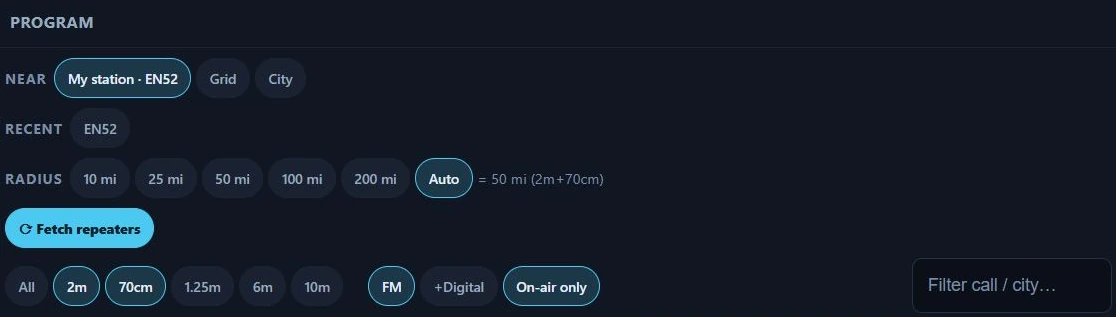
The source column in Nexus 1.10.3, before a fetch.
Two columns. The source column on the left is where you say where you are and what you want; the Channel list on the right is what you are building. They sit side by side from about 1100 px of effective width. Below that — 1024×768 included — they stack, the list under the source, and the panel itself scrolls, so the delivery row at the bottom is reached by scrolling rather than lost off the edge. The page uses the whole width of the window. From about 1600 px of effective width (1920×1080, and 1366×768 at the default scale) the Search card is a compact strip across the top of the source column, and under it the map and the results list sit side by side, each the full height, the list scrolling by itself; narrower, the map sits above the list and the list takes the rest of the height.
Near is the one place that says where to search. My station carries
your grid from Settings ▸ Station and needs no
input at all. Beside it, one box takes a grid square or a city: a locator (four
or six characters, EN52) is the place as typed; anything else (“Gatlinburg
TN”) is a town, geocoded when you press Search or Enter — never per
keystroke — offering up to five OpenStreetMap candidates to pick from; a single
match is picked for you, and no match says “No places matched — try ‘City,
State’”. The candidate you pick becomes the point the search runs from, not your
station grid, so programming for a town you have never been to is the same job
as programming for home. Recent holds the last five origins that answered,
with their resolved coordinates, so a place you program often is one click to
select — then you press Fetch, which is always yours to press.
Radius is chips at 10, 25, 50, 100 and 200 miles plus Auto, which is the “radius from the selected bands’ realistic repeater reach”: 25 mi for 70 cm and 1.25 m, 50 for 2 m, 75 for 6 m, 100 for 10 m, the widest of what you have selected, and 50 with no band chip lit. Auto prints the number it resolved to beside the chips, so it never moves the search without telling you.
Route to…, at the end of the Near row, makes the search a route: Near becomes From, and a To row offers the same three ways to give the other end (My station, Grid, City); its ✕ goes back to the search around one place. Corridor takes the place of Radius: chips at 10, 25 and 50 mi, 25 to start with, measured either side of a straight line between the two places and past either end. The list then holds the machines inside that strip, in the order the trip passes them. Each row’s distance reads how far along the route the machine is (“120 mi”), and the line under it how far off the route (“3 mi NE of the route”).
Fetch repeaters is the one filled accent button on the screen and the only control that pulls repeater data; the City Search click is the section’s only other network call, so nothing here reaches out unless you pressed something. After a fetch, the line beside it names each directory that answered and how old its data is — “RSGB · 1d ago hearham · 2d ago”, “RepeaterBook · 3h ago hearham · 2d ago” — and adds “stale (fetch failed, cached data shown)” to one you are seeing from cache because the fetch did not land. Directory data caches for seven days per source, and a RepeaterBook state or an RSGB locator square re-tries at most every 15 minutes, so repeated fetches from the same spot are free and instant; a directory does not change hourly and this one does not pretend to.
Where the data comes from. With no token, hearham.com — an open, no-account
directory pulled whole (~22,000 rows worldwide) and cached. Add your own
RepeaterBook token (rbuapp_…, from your RepeaterBook account’s API Apps
page) under RepeaterBook in Settings and US searches also pull RepeaterBook
state exports under your own account. RepeaterBook’s API has no radius query,
so Nexus pulls the origin’s state plus whatever states sit under eight compass
points at your radius and filters by distance locally — a search on a state line
gets the neighbouring state too, rather than half a circle of results. Shared
RepeaterBook access for every Nexus user is pending RepeaterBook’s approval:
until it is granted that path answers 503 and the search falls through to
hearham, which is why an install with no token is a hearham install. hearham is
read on every search, under the other lists, and only a list that reads as
hearham’s is kept on your PC. When it cannot be read the search says so: an
error with Retry when there is no other list, or a note when RepeaterBook’s or
the RSGB’s machines are shown alone. It never reports an empty area instead.
For a location in the UK, Repeaters also reads the national coordinator’s list: the RSGB’s repeater list (ETCC, ukrepeater.net), asked about the 4-character locator squares your radius reaches, the nine nearest at most, one request per square, each cached for a week. When a wider radius reaches further, a note names the squares it did not ask about, where the machines are hearham’s alone. The RSGB service is a beta: when it cannot be read, a note says so and the list is hearham’s alone, never an empty one.
One row per machine. Every directory a search reads is merged: two listings
are one machine when they share a callsign (without a link suffix such as -L)
and an output within 2.5 kHz, or, with no callsign, the same output and input
within 2.5 kHz less than 5 km apart. Each field comes from the highest of the
coordinator, then RepeaterBook, then hearham that has it, so a coordinator
listing with no tone takes hearham’s. Where they disagree about the tone, the
input (the shift), the modes or a DMR colour code, the row programs the higher
source’s value and says so on a line of its own: Sources differ — “Tone
RSGB 88.5 is programmed (also listed: hearham 82.5)”. Around Manchester that is
GB3BW’s tone and GB3XN’s input (hearham has it as simplex, so a radio
programmed from hearham alone could not open it). A machine hearham lists only
by its DMR side, like GB3XL, is one FM row with the coordinator’s CTCSS tone and
colour code, and a machine hearham lists once per mode or per linked node is
one row.
The attribution line under the results credits every directory that answered — “Repeater data: RSGB ETCC (ukrepeater.net)”, “Data courtesy of RepeaterBook.com”, “Repeater data from hearham.com” — and the exported file carries a comment line for each directory this search read and each one a channel in your list came from.
hearham has real holes in rural country, so Repeaters checks for one. When the results inside your radius carry nothing at all on 2 m, or nothing on 70 cm, a note says so: “hearham lists no 2 m repeaters here, which is unusual for an area that has any — its rural coverage is patchy, so this list is probably missing machines.” It looks for a missing band rather than a low count, because genuinely thin country stays balanced across the two bands and would otherwise cry wolf. A short list is not flagged; a one-sided list is.
Filters sit at the top of the Results card, in two groups: Bands, one segmented control (All, 2m, 70cm, 1.25m, 6m, 10m — 2 m and 70 cm lit to start, and they multi-select), and Show (FM or +Digital, and On-air only). A machine on a band with no button of its own — 33 cm, say — shows only under All. The list’s own text filter sits with the list, at its top: Filter: call or MHz, with a ✕ that clears it. It narrows the list you have, by callsign or town; it never searches somewhere else, and if what you type there looks like a place (“woodstock, il”), it offers Search near “woodstock, il” instead?, and that tap is the search: the words move to Near, Near looks them up, and the list is fetched around the place with the radius and bands you have set, the filter cleared. Words that are no place say so where the offer was and fetch nothing; a name that is several places waits for you to pick one under Near. The count line, in the Results header, says what the filters hide and by which, with one tap to undo them all: “21 of 25 shown · nearest first — 4 hidden by On-air only · Show all”. Beside it, Add all to channel list and Save all to Memories.
Type a frequency in MHz into the same box — 147.18, 147.180, 438.5125, or 438,5125 with a decimal comma — and the list shows every machine whose output is within 2.5 kHz of it, whatever the band, digital and on-air filters say, so a DMR or off-air machine on that frequency is not hidden: “3 on 147.18 MHz (±2.5 kHz), filters not applied · nearest first”. 2.5 kHz is under half the narrowest channel spacing in use (6.25 kHz), so a frequency names one channel: 147.18 never finds 147.195 or 147.1875. The search covers the machines inside your radius; with none on the frequency, Repeaters says so and offers a wider one.
A result row is callsign, output frequency, offset (-0.6, +5.0, → and
the absolute input for a true split, — for simplex), tone (103.5, D023,
—), then distance in miles and compass octant from your origin, with the city
and state on hover. A machine hearham lists with an AllStar or IRLP node, or
with its DMR ID, carries a line under the row with those numbers and its DMR
colour code: “AllStar 2462 · IRLP 3570 · CC1” (a node hearham gives without
naming its network reads “node 7230”). The exported files write the same after
the town in that channel’s comment, “Rockford; IRLP 3570; CC1”, as neither file
has a column for them. RepeaterBook’s own node columns are not read, and the RSGB
list has none. Under that, a line names the directories behind the machine
and its date: the directory’s own date when it gives one (“RepeaterBook ·
updated 2026-05-14”), otherwise “no date” and the age of the list it came in
(“RSGB + hearham · no date · fetched 2d ago”; hearham and the RSGB list date no
single machine). FM machines carry three actions, each with its own icon:
Tune (only while CAT is up), Save to Memories (the bookmark; it becomes
an In Memories badge once saved) and Add to channel list (the list; it
reads In channel list afterwards, and clicking it again takes the channel
back out). Memories is the station’s saved channels; the channel list, on the
right, is for programming a radio. Digital-only machines are listed, greyed and badged DMR /
D-STAR / YSF, with Add disabled — “Digital repeater — programming
DMR/D-STAR/Fusion comes in a later version”. An FM machine that also runs Fusion
badges +YSF and programs as plain FM. Off-air machines are dimmed with an
OFF-AIR badge and hidden by the On-air only filter, but nothing stops you
programming one once you have chosen to see it.
The channel list heads with the row count, Max name and Start at. Max name is your radio’s channel-name length — 6 (FT-60 class), 7 (Baofeng, the default), 8 (most HTs), 12 (Yaesu mobile), 16 (Anytone) — and the derived names re-fit the moment you change it, so you see the file you are about to export rather than discovering the truncation on the radio. Start at is the first memory slot number, for keeping the channels a radio already holds.
Names are derived so that most lists need no typing: the callsign when it fits
the cap and is unique (“that’s the W9ABC repeater”); the truncated call plus the
frequency nickname operators actually say — W9AB 94 for 146.940 — when a club
has a second machine or the call overruns the cap; the city squeezed to
consonants plus that nickname — GTLNB94 — when the directory has no call at
all. Type over a name and it is yours: that row stops re-deriving. Two rows that
would land on the same name go red (“the radio will show two identical
channels”), and so does a name longer than the cap, whose hover tells you the
exact string it will export as.
Each list row is the slot number, the name field, RX frequency, offset, tone, and ▲ ▼ ✕ to order and remove. The order on screen is the order it programs. The list auto-saves about a second after every change and is there when you come back to the section or restart the app.
The delivery row sits under the list — four buttons, all disabled while the list is empty:
- Export for CHIRP… writes a CHIRP generic CSV to your Downloads as
nexus-chirp-YYYY-MM-DD.csvand tells you the full path it wrote. The first time, a Flash with CHIRP dialog explains the three steps first (“Nexus builds the list; CHIRP drives the cable. One list, every radio you own”) and offers a “Don’t show this again — just save the file” tick. - Export CSV writes
nexus-channels-YYYY-MM-DD.csv: a plain sheet with RX and TX frequency both spelled out, for spreadsheets, Anytone CPS and RT Systems. It is not the CHIRP format. - Save list to Memories puts the channels into Nexus’s own Memories with the machine’s shift, offset and tone, deduped on frequency + mode + tone so re-saving the same list never piles up duplicates. A recall from a cockpit MEM strip then retunes the rig as a repeater, not just to a frequency.
- Clear asks “Clear the whole channel list?” and empties it.
Core workflows
Program a handheld for a trip
-
Set Near to the place you are going — type a town or a grid into its box, or leave My station for home — and press Fetch repeaters.
-
Leave Auto radius on unless you want a different circle; with 2 m and 70 cm selected it works out to 50 mi.
-
Set Max name to your radio (7 for a Baofeng) before you review names, so what you read is what the file will hold.
-
Add machines with Add to channel list, or Add all to channel list to take the whole filtered list at once — it confirms first past 50 and adds at most 200.
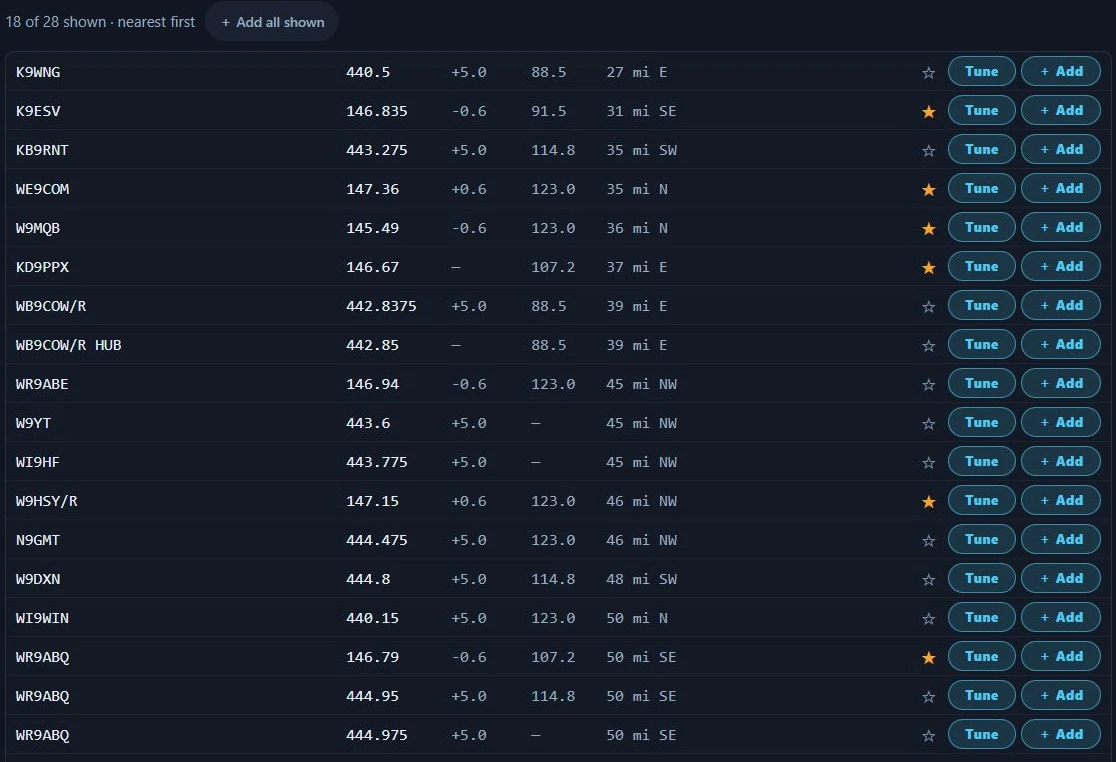
Fetched results in Nexus 1.10.3 — 18 of 28 machines showing, after the 2 m and 70 cm band chips and On-air only.
- Put the list in order with ▲ ▼, rename anything you want to recognise on the radio’s display, and drop the rest with ✕.
- Export for CHIRP…, then follow the three steps the dialog gives: open CHIRP → File ▸ Import and pick the saved file → connect the programming cable → Radio ▸ Upload To Radio.
⚠️ Before you export, know what Start at does and does not do. It renumbers the preview so you can plan around channels the radio already holds. It is not carried into either export: both the CHIRP CSV and the plain CSV number their rows from 1, every time, whatever the box says.

One channel in the list, in Nexus 1.10.3. Set Start at to 21 and this row would read 21 on screen — and would still be written as channel 1 in the exported file.
So if the radio already holds twenty channels you want to keep, Start at is for reading, not for the file. Import the export as it stands and CHIRP overwrites from slot 1. The way to keep the existing twenty is to read them out of the radio with CHIRP first, then paste these rows in below them — or to renumber the exported CSV yourself before you import it.
Program the repeaters along a drive
- Press Route to… at the end of the Near row. Leave From on My station (or give the place you leave from), and type where you are going into the To box: a town (then Search) or a grid.
- Leave the Corridor at 25 mi, the 70 cm reach Auto uses (2 m reaches farther), or take 10 mi through dense country and 50 mi across empty country. Press Fetch repeaters.
- The list is in the order you will pass the machines, from where you leave. Add all to channel list adds them to the channel list in that order, so the export is one channel list you can step through as you drive. Narrow it first with the band and FM chips if your radio holds fewer channels than the drive has machines.
- Set Max name and export as for a trip: Export for CHIRP… or Export CSV.
A long drive in the US asks RepeaterBook about the first nine states it reaches, no more than a radius search can, and names the others (“the machines in CO, NM, CA are hearham’s alone”); search the rest of the drive as a second route that starts where the first one’s states end. A long drive in the UK does the same with RSGB’s locator squares.
See the repeaters on a map
- Fetch repeaters around a place or along a route. The map comes first, beside the list on a wide window and above it on a narrower one: the place you searched (or the two ends of the route) marked with a cross, the radius as a ring (or the corridor as a band along the straight line), and each machine as a dot with its callsign beside it. The band, FM, on-air and search filters apply to the map as they do to the list.
- A dot and its row are linked. Point at a dot for its callsign, output and town, and its row in the list lights up; point at a row and its dot is ringed. A filled dot is in your channel list.
- Click a dot to select it: its row comes into view, and a card on the dot offers Save to Memories and Add to channel list (or In channel list, which takes it off the channel list again). A click on a row selects it the same way; ✕ or a click on empty map closes the card.
The map shows hearham’s listings only, each where hearham places it, with hearham’s own callsign and town: hearham invites map use, RepeaterBook’s terms do not allow its listings on a map, and the RSGB list is not mapped yet. With a RepeaterBook token, or around a UK place, the words under the map say how many of the machines shown only RepeaterBook or the RSGB list has; those stay in the list and off the map.
Save repeaters to Memories
- Press Save to Memories on a repeater’s row, or on the card of its dot
on the map. It goes into Memories as a channel, not starred: its frequency,
offset, tone or DCS code, narrow FM where the directory says the machine is
narrow, its callsign and site, and in its notes the town, the links (AllStar,
IRLP, DMR ID) and the DMR colour code, written the way the CHIRP export’s
comment writes them (
Seattle; IRLP 3570; CC1). It is named the way it is said out loud (W9ABC 94). - Save all to Memories, beside Add all to channel list, saves every FM repeater the list shows. More than 50 asks first, and one press saves at most 200.
- A repeater already in Memories shows ✓ In Memories on its row instead of
the button; point at it for the memory’s name. Nothing is saved twice. The
same machine is the one the repeater lists are merged by: the same output
(within 2.5 kHz) and the same callsign (
W9ABC/RisW9ABC), or, where a side has no callsign, the same input too and a site within 5 km. A machine saved from hearham is found again in RepeaterBook’s list, and another machine on the same output and tone in the next county is saved as its own channel. A memory you typed in with neither a callsign nor a site is never taken for a directory’s machine. - The memory is yours from then on: edit or delete it in Memories, and the row follows (the badge goes when the memory does).
Put one machine on the cockpit strip
- Press Save to Memories on the row of the machine you actually want on the radio in front of you. That skips the channel list and the export entirely.
- In Memories, star ★ it: it goes on the MEM strip in the Phone, CW and Operate cockpits. Repeaters’ rows carry no star of their own; the In Memories badge says the machine is saved, and its tooltip names the memory.
- Recall it from the MEM strip when you want it. The memory keeps the machine’s coordinates too, so Memories shows distance and bearing recomputed from wherever you are operating today.
Tune the rig to a repeater now
- Press Tune on an FM result row — it is there whenever CAT is up: “Tune your CAT rig to this repeater now (FM + shift + offset + tone)”.
- The machine’s frequency, its exact shift and offset, and its CTCSS tone all land together, on FM, routed to the radio you have mapped for FM on that band. It is one step, not a QSY followed by fixing the tone, and naming FM explicitly is what makes it correct when you arrive from a data section, since a repeater is inaudible in a data mode.
- Read what Nexus confirms — “Tuned 146.9400 FM — −0.60 MHz · tone 103.5” — or the refusal in plain words when the rig cannot get there: “This radio doesn’t cover 146.9400 MHz, so it can’t work that repeater.”
- Tuning is all it does — nothing here arms transmit, and you stay in Program with the rig sitting on the repeater.
Keep the list inside Nexus
Use this when the channels are for operating from Nexus rather than for a handheld; Save to Memories on a result row is the one-machine version.
- Build the channel list, then press Save list to Memories.
- Read what it reports — “6 channels saved to Memories (2 already there) — star ★ the ones you want on the cockpit MEM strip”.
- In Memories, star the channels you want reachable from a cockpit MEM strip.
Honest limits
-
The map is hearham’s listings, not your list. A machine only RepeaterBook or the RSGB list has is left off it (the words under the map count them), and a machine hearham shares with them stands where hearham places it, which can differ a little from the distance the list gives. The map also has no roads and no towns of its own, and it does not zoom or pan: it is drawn to fit the radius or the route.
-
A route is a straight line, not the road. Nexus has no road map, so the corridor is measured either side of the straight line between the two places. A road that bends far from that line can leave machines along it outside a narrow corridor; a wider corridor, or two shorter routes that meet at the bend, keeps them in.
-
Start at renumbers the screen, not the file. It moves the slot numbers in the builder so you can plan around channels a radio already holds, but both exports number their rows from 1 regardless. Importing into a radio image without allowing for that overwrites from slot 1. Spelled out with the preview beside it under Program a handheld for a trip.
-
v1 programs analog FM only. Digital machines are listed and badged so you know they exist, but they cannot be added, and a CHIRP export refuses an all-digital list: “No FM channels in the list — digital channels export in a later version”. The DMR/D-STAR/Fusion fields are stored in the saved list so today’s work survives that version — they are not written to any file yet.
-
The name cap applies to the CHIRP export, not the plain CSV. Export CSV writes names as typed, uncapped and unsanitised; the CHIRP file is the one that matches the preview.
-
Nothing merges two rows that program the same machine. Rows are tracked by their directory id, so a linked system listed once per node adds once per node. Save list to Memories does dedupe (on frequency + mode + tone); the builder list does not.
-
Max name and Start at reset each launch, and a list restored after a restart keeps the names it had — those rows count as hand-edited, so changing Max name afterwards does not re-derive them. The CHIRP export still truncates to the current cap.
-
Save list to Memories does not carry the machine’s coordinates, so channels saved that way show no distance or bearing in Memories. Save to Memories on a result row is the path that carries them.
-
Exports overwrite the same day’s file. The filename is date-stamped only, so a second export on the same day replaces the first in Downloads without asking.
-
One list, not named projects. There is a single working list, auto-saved; the file format holds many, but nothing in the UI creates, names or switches between them.
-
Nothing refreshes itself. Fetch and the City Search click are the only network calls and both wait on a press, cached data can be up to seven days old, and there is no bundled offline directory — a first fetch with no network and no cache fails with the reason and a Retry button rather than showing an empty list.
-
hearham is the default source and it is incomplete in places. The missing-band note catches the case where a whole major band is absent; it cannot tell you about the individual machines a directory never listed. A RepeaterBook token is the fix, and shared access is not available until RepeaterBook approves it.
-
Repeaters has no ⧉ pop-out — it renders in the main window only. (Memories does detach, if you want a channel list on a second monitor.)
-
Nexus does not talk to your radio’s programming port. No cable, no CPS, no cloning. The one thing it moves directly is a CAT rig’s VFO, from the per-row Tune button.
Related guides
- Memories — where Save list to Memories puts the channel list, and what the cockpit MEM strip recalls
- Phone (SSB) — working FM and repeaters once the channels are in
- Field Day & POTA/SOTA
- Settings reference
This page is synced from docs/guide/program.md in the Nexus repo. Corrections belong there.